Quick Start Guide
From download to your first sorted, nest-ready job in about 15 minutes.
0 Before you start
- Windows 10 or 11, 64-bit.
- SolidWorks installed and licensed on the same machine (needed for the Job Pack and Batch Export steps; viewing, sorting and reporting work without it).
- A licence or trial key from OpusAg — request one at sales@opusag.co.uk.
- Outbound HTTPS access for licence validation (see For IT). No server, no database, no inbound ports.
1 Install
- Download the latest installer: Download DraftX for Windows.
- Run DraftX Setup x.x.x.exe, accept the licence agreement, and choose an install location (per-user by default — no admin rights needed).
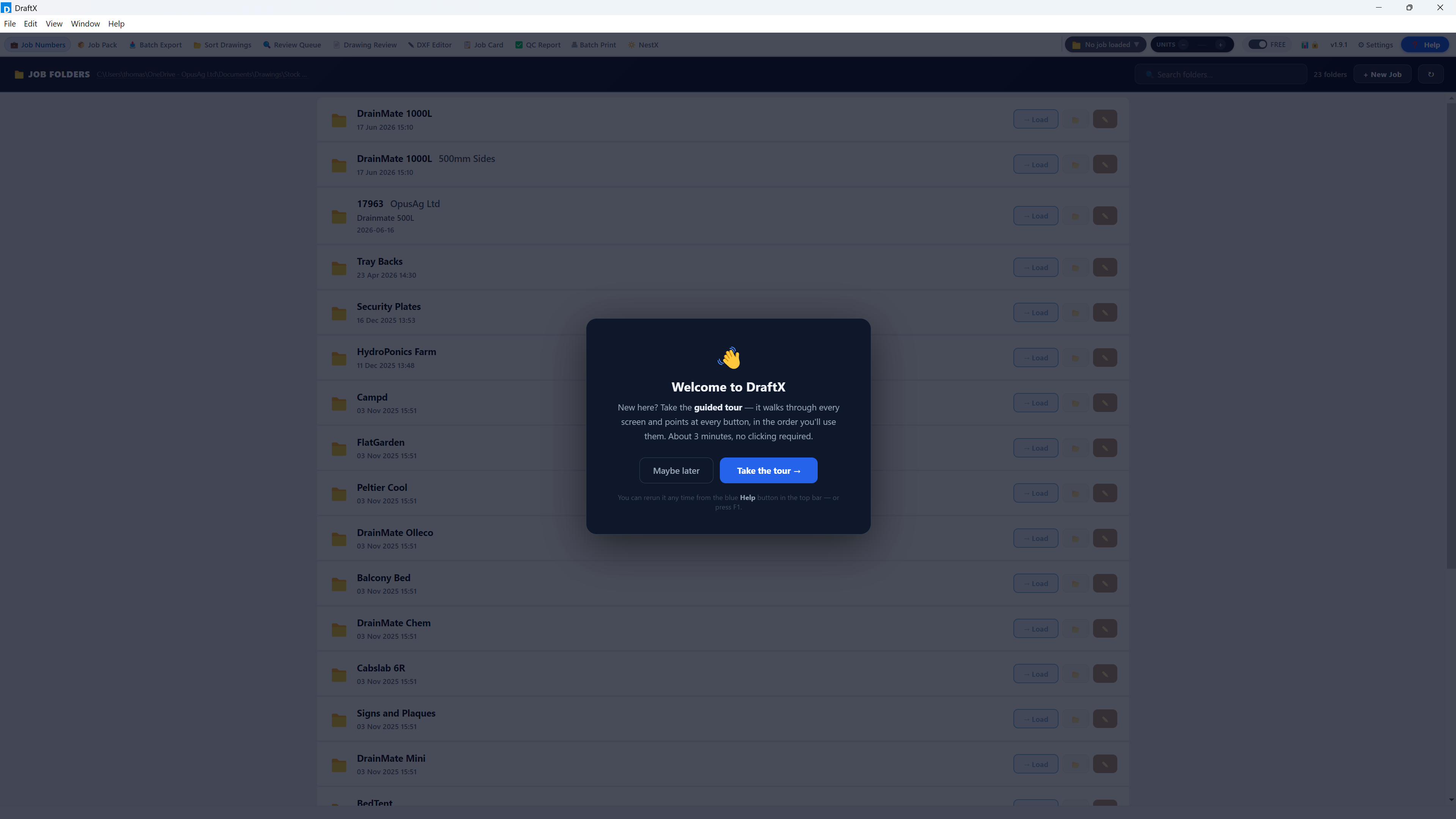
- DraftX launches when setup finishes and keeps itself up to date automatically.
If Windows SmartScreen appears ("Windows protected your PC"), click More info → Run anyway. This warning fades as a new publisher builds reputation with Microsoft.
2 Activate
- On first launch, click Start free trial. Enter your name, company and work email, and DraftX activates a 30-day trial bound to this machine — no key to request, every core feature unlocked.
- You'll see a countdown pill in the header showing days remaining. Everything stays unlocked until it expires.
- Bought a licence? Click Activate license key instead, paste your key, and it binds to this machine automatically. When your trial ends, enter a full key on the same screen and you pick up exactly where you left off — nothing is lost.
Replacing a PC? Email sales@opusag.co.uk and we'll release the old machine so you can activate the new one. Brief internet outages are fine — DraftX keeps working through a short offline grace period.
3 Your first job — let Guided mode drive
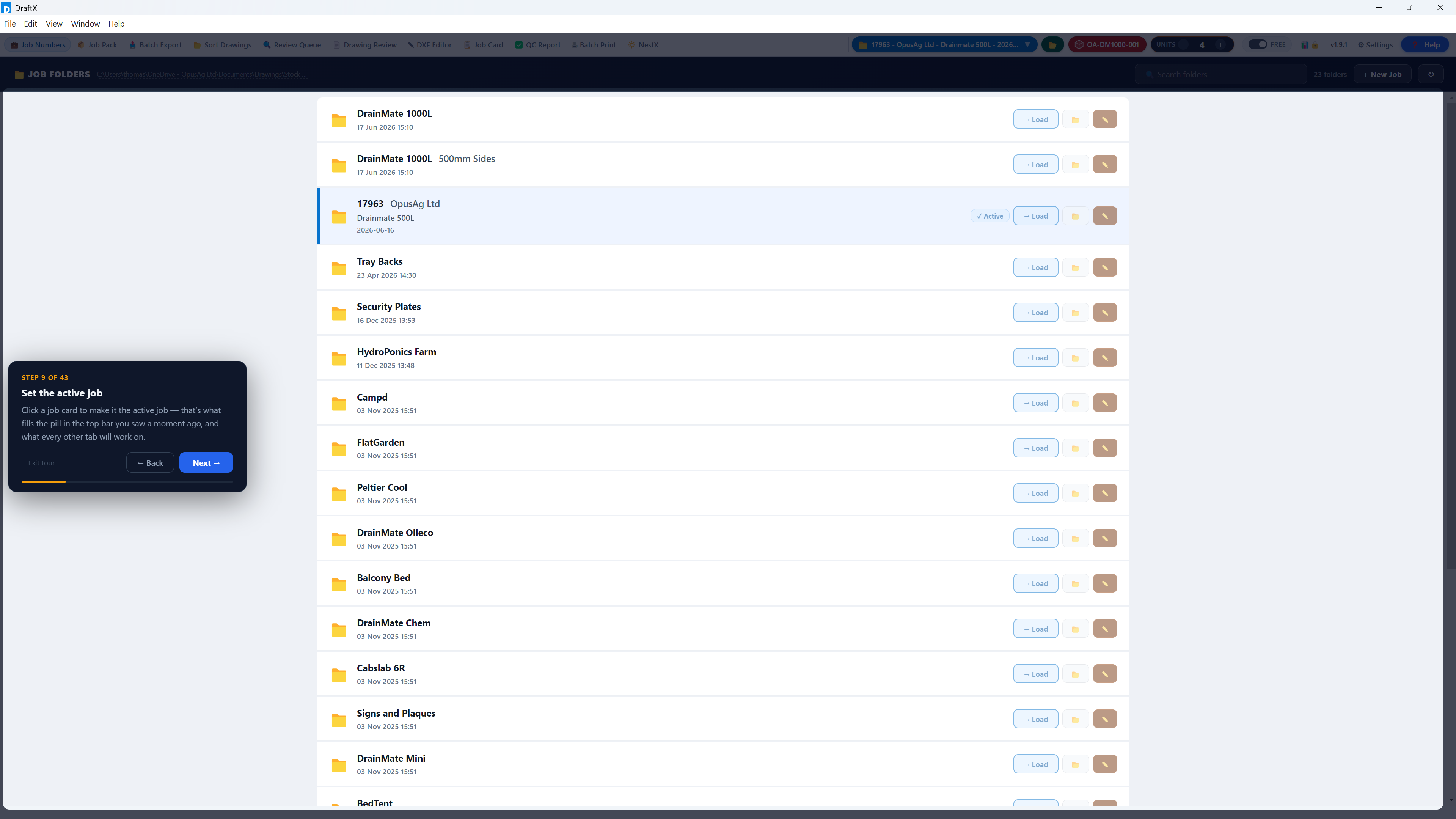
DraftX starts in Guided mode: tabs unlock in workflow order and a bouncing arrow always points at your next step. You can't get lost — locked tabs explain what to do first when clicked. (Switch to Free mode any time with the toggle in the header.)
3.1 Create the job
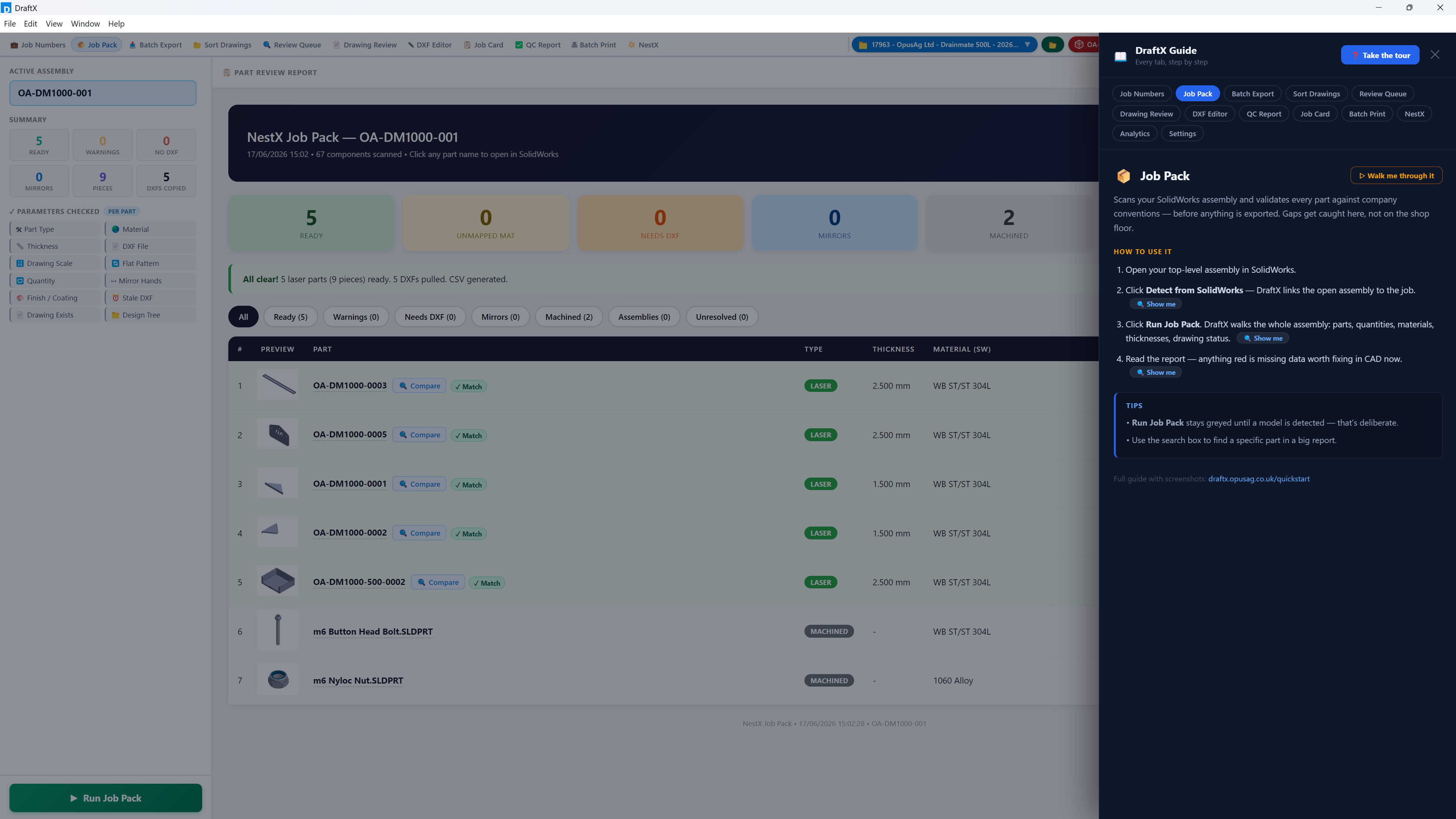
On the Jobs tab, create or select the job you're working on. This sets the job folder every later step writes into.
3.2 Run Job Pack
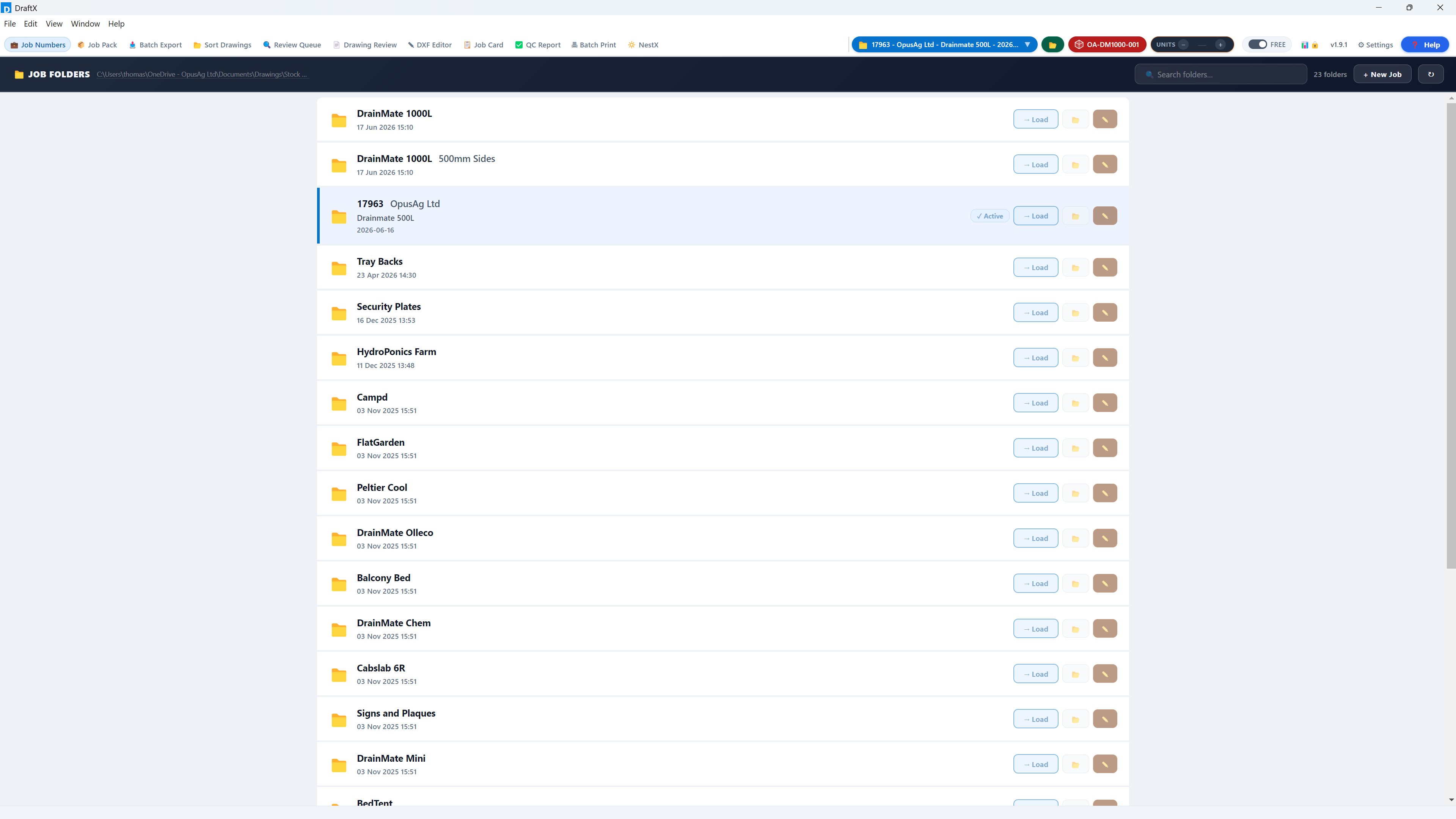
On the Job Pack tab, click Detect from assembly with your top-level SolidWorks assembly open (or browse to it). Once the model is set, Run Job Pack lights up — click it and DraftX walks the assembly, gathers parts, quantities and materials, and builds the job structure.
3.3 Batch Export
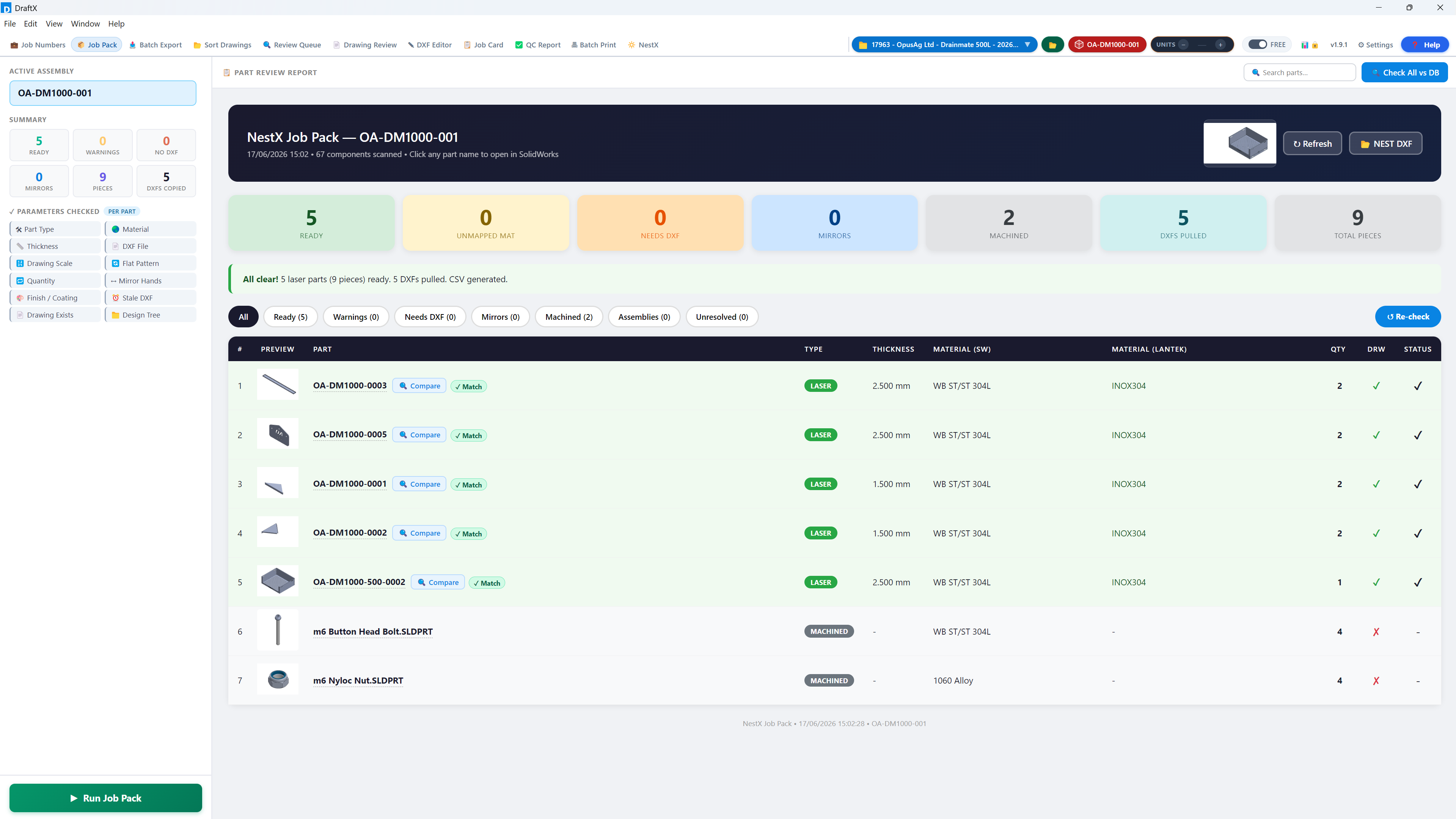
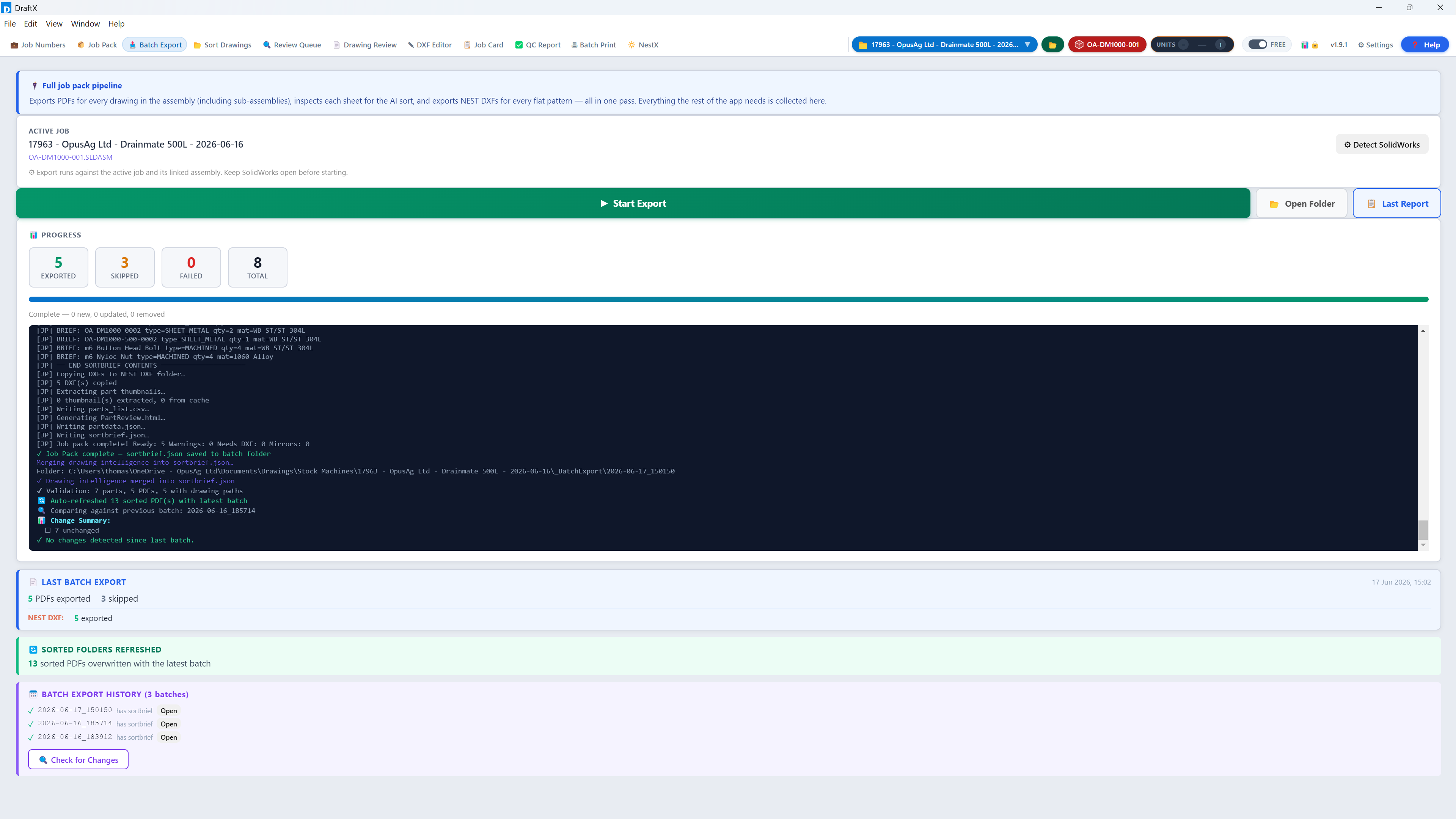
On the Batch Export tab, export every drawing to PDF (and DXF for flat parts) in one run. DraftX drives SolidWorks for you — go and make a brew.
3.4 Sort Drawings
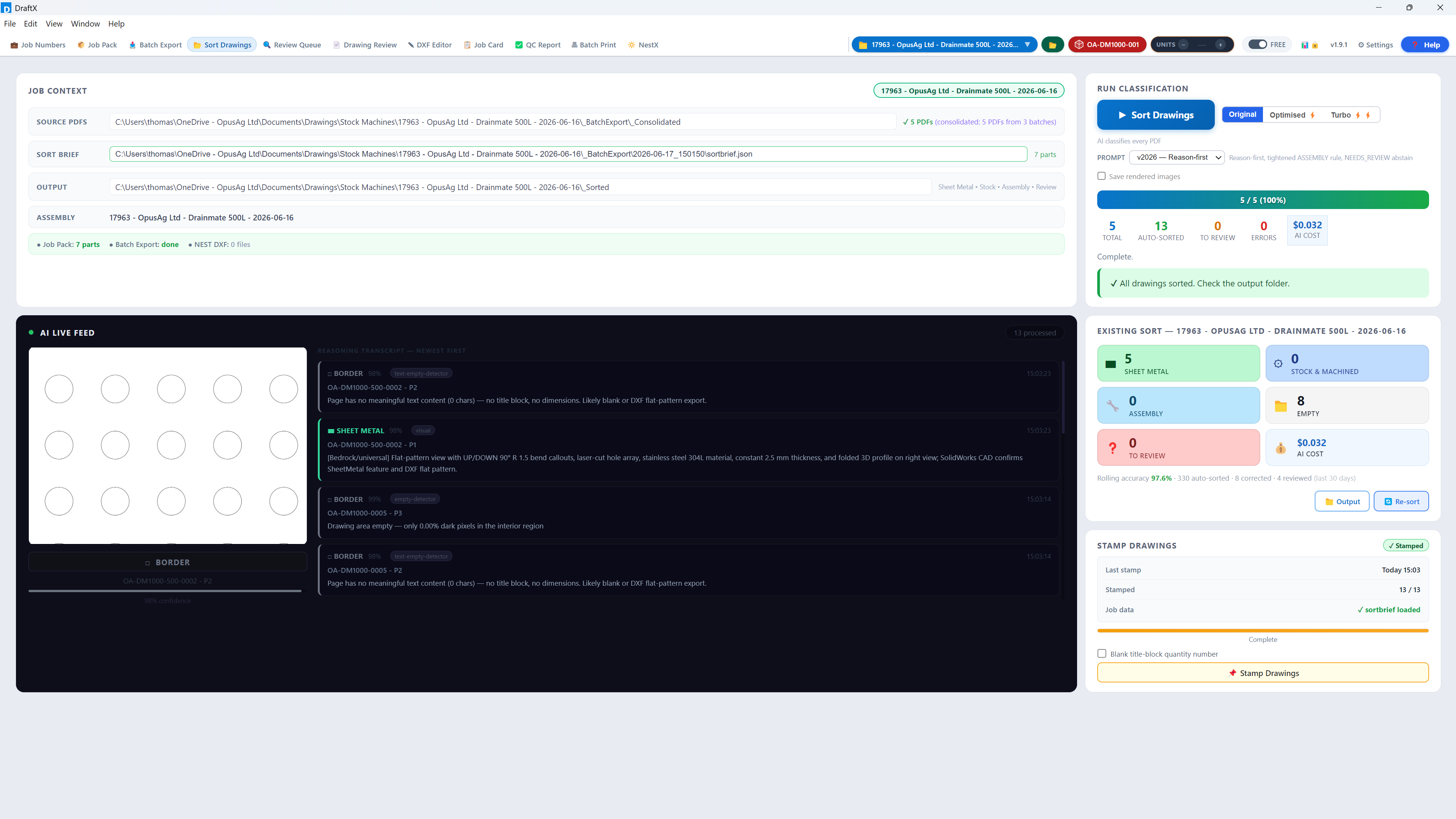
On the Sort Drawings tab, DraftX classifies every exported drawing — laser, fold, machine, fabrication, bought-out and more — into a clean folder structure. With AI sorting enabled it reads the drawings like a person would; without it, rule-based sorting still does the heavy lifting.
3.5 The app is now yours
After sorting, every tab unlocks and the arrow disappears — from here the order is up to you. The next section walks each tab in the order most shops use them.
4 The tabs, one by one
4.1 Review Queue — confirm the AI's uncertain calls
Anything the classifier wasn't confident about lands here instead of being filed silently — the tab shows a count badge when there's something waiting. Each drawing is shown with its suggested category; click the correct one and DraftX re-files the drawing instantly. An empty queue means every drawing was sorted with high confidence.
4.2 QC Report — prove the job is complete
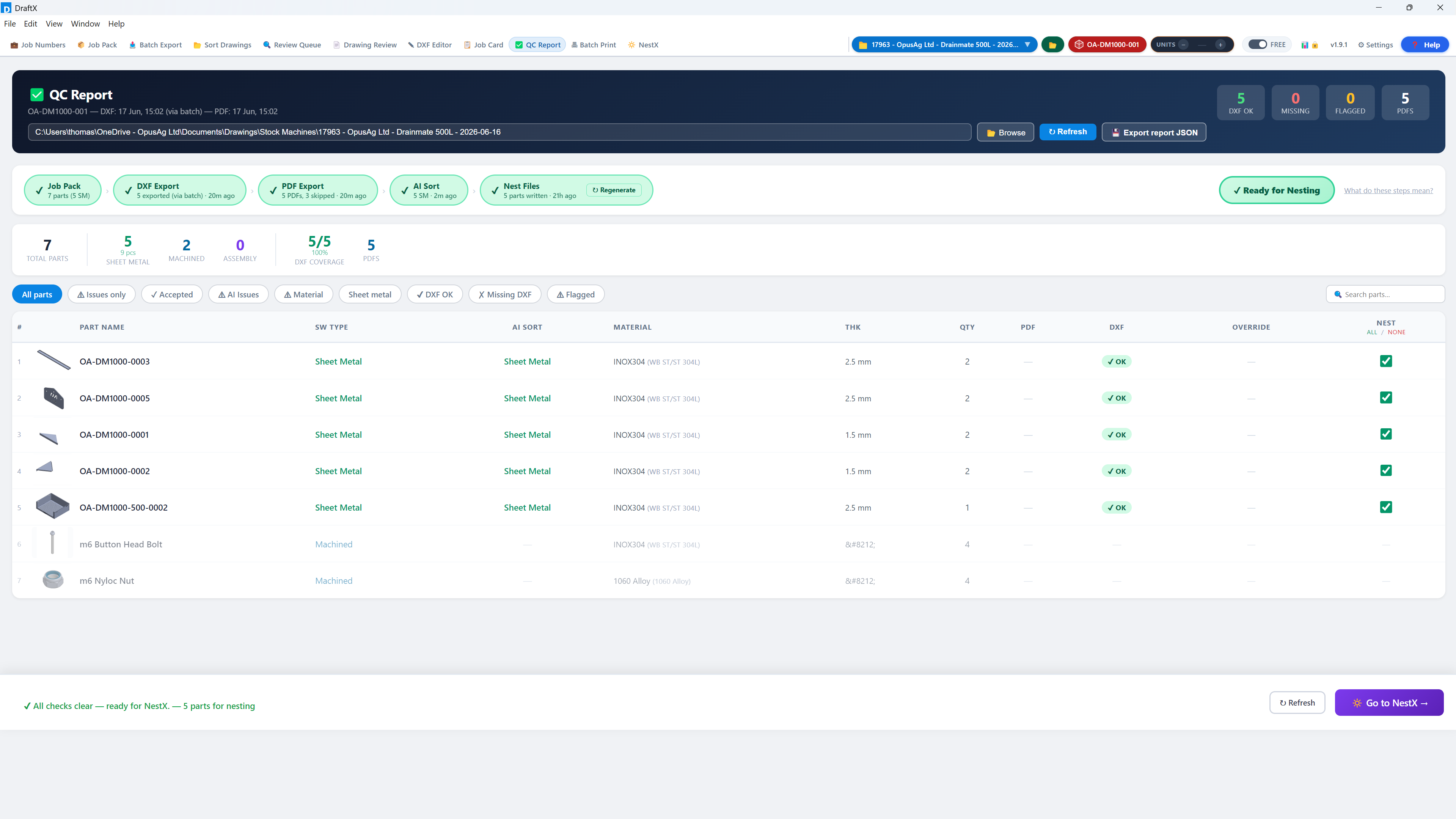
The QC Report cross-checks the assembly BOM against what was actually exported and sorted: every part, its quantity, whether it has a drawing, whether flat parts have a DXF, and where it was filed. Work down anything flagged before releasing the job — this is the "nothing missing, nothing duplicated" gate. From here you can also Generate nest-ready files and jump straight on with Go to NestX →.
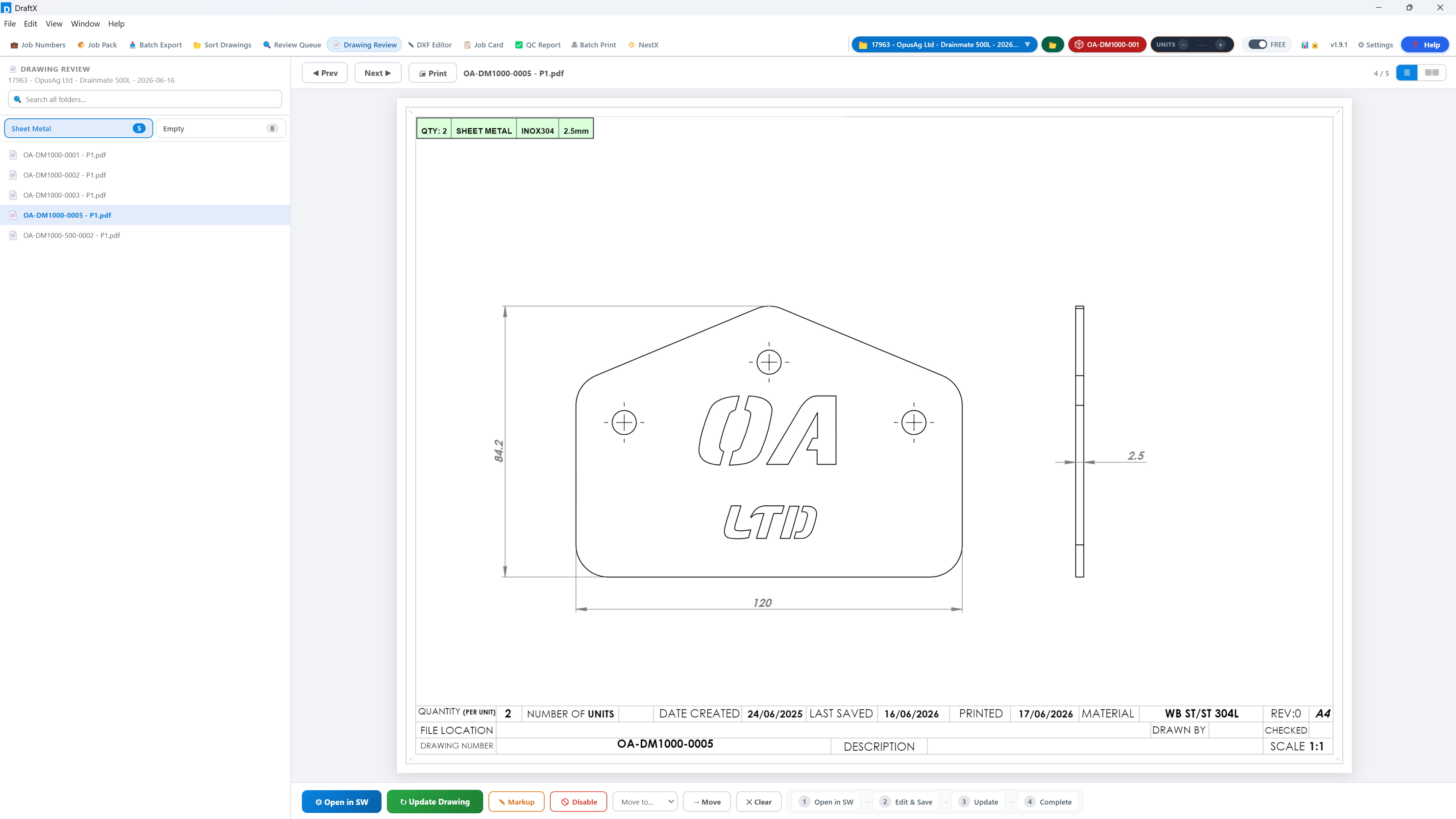
4.3 Drawing Review — eyeball every sheet, fast
Full-screen, keyboard-driven flick-through of the job's drawings — the digital version of leafing through a job pack, without the printing. Step through sheet by sheet, zoom in on details, and flag anything that needs a second look before it reaches the shop floor.
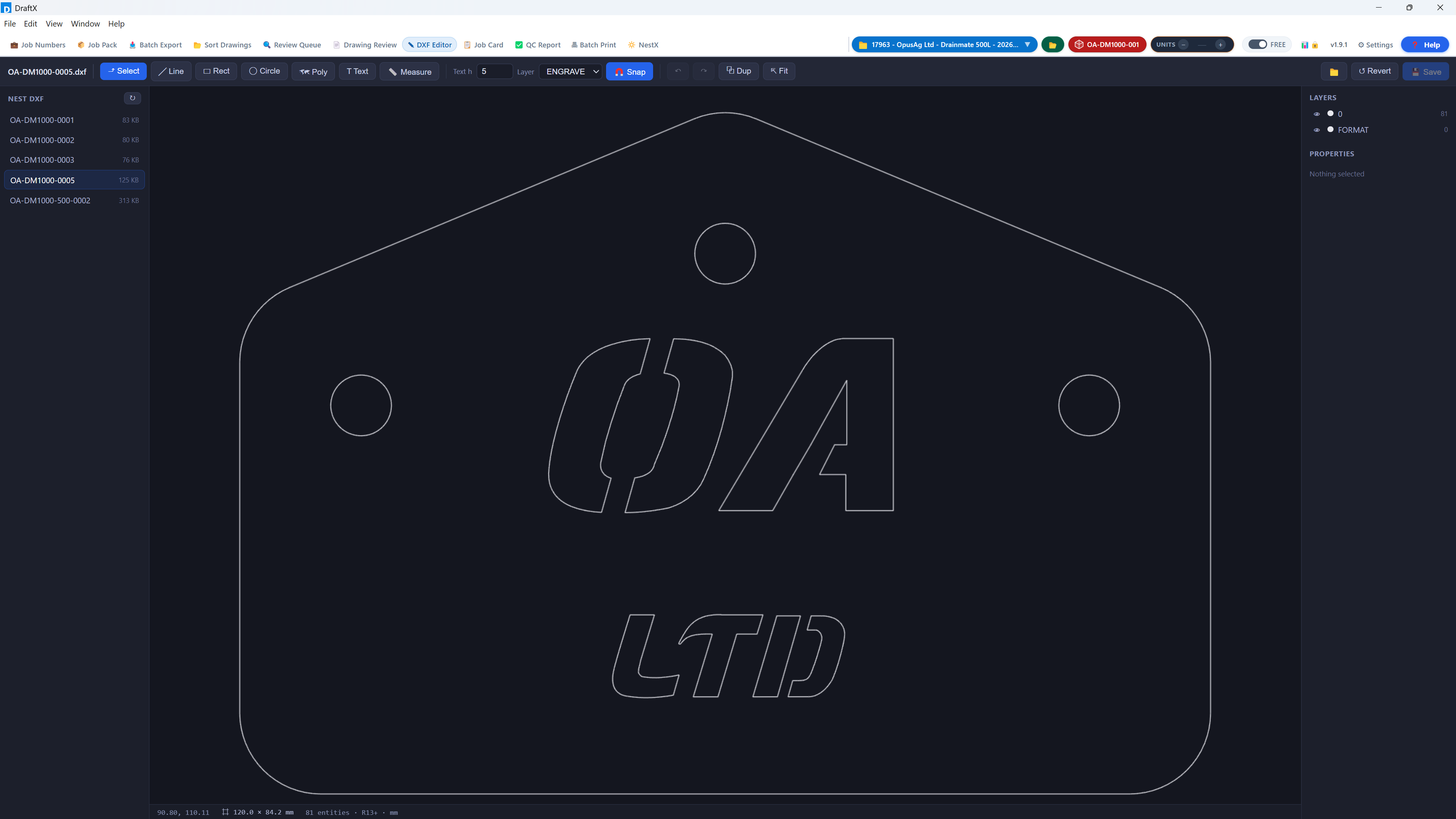
4.4 DXF Editor — clean up flat patterns
Open any exported DXF and tidy it before nesting — without a trip back through CAD. Useful for stripping stray geometry or checking a flat pattern is exactly what the laser will see.
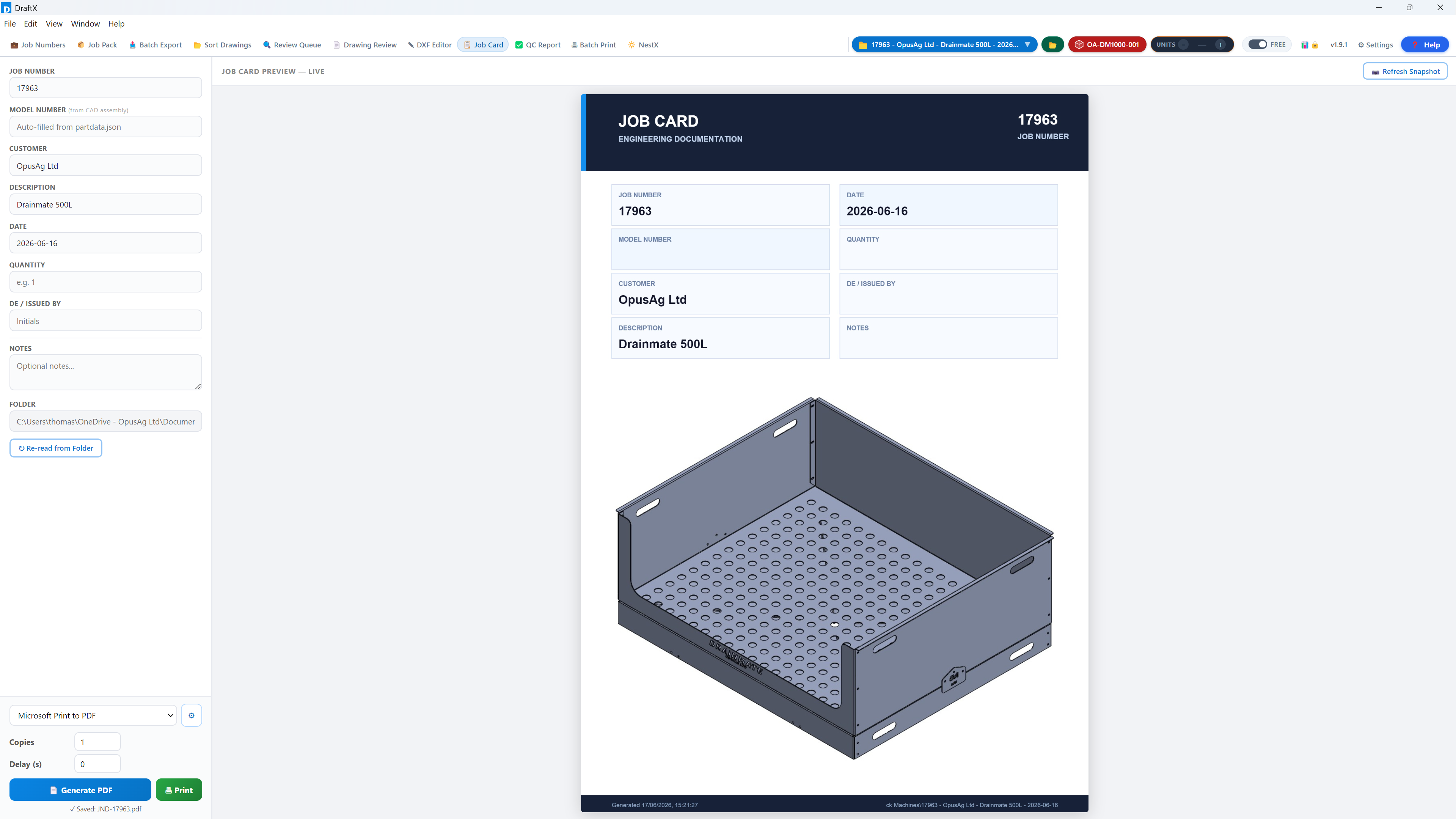
4.5 Job Card — production paperwork in one click
Pick the job, check the snapshot preview, and hit Generate PDF. You get a branded job card with the assembly snapshot, part counts and job details — ready for the office wall or the folder that travels with the job.
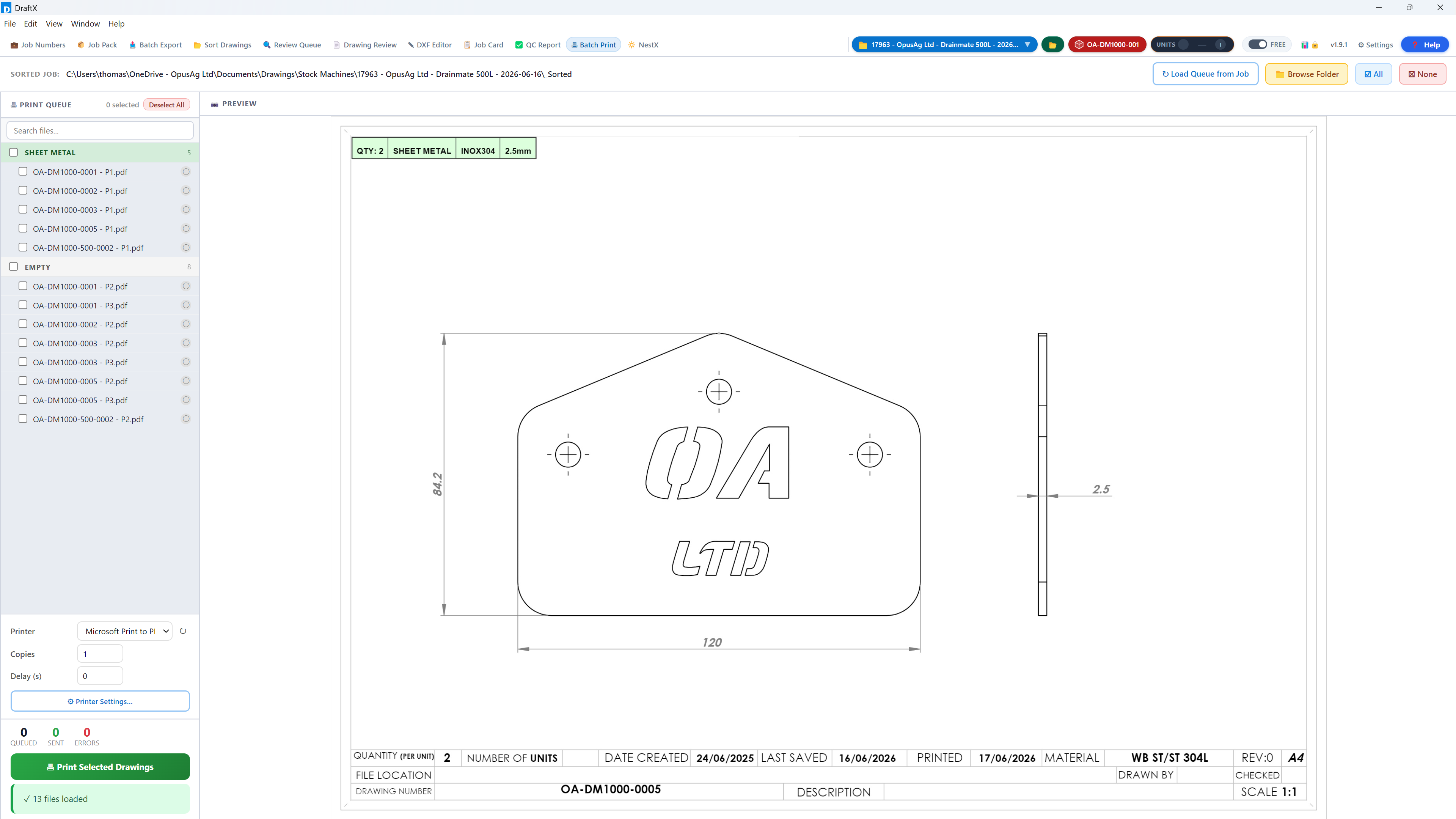
4.6 Batch Print — paper for the shop floor
Browse the sorted job folders, build a print queue (whole categories or hand-picked drawings), check the preview, and send the lot to the printer in one go — no more opening PDFs one at a time.
4.7 NestX — straight into Lantek
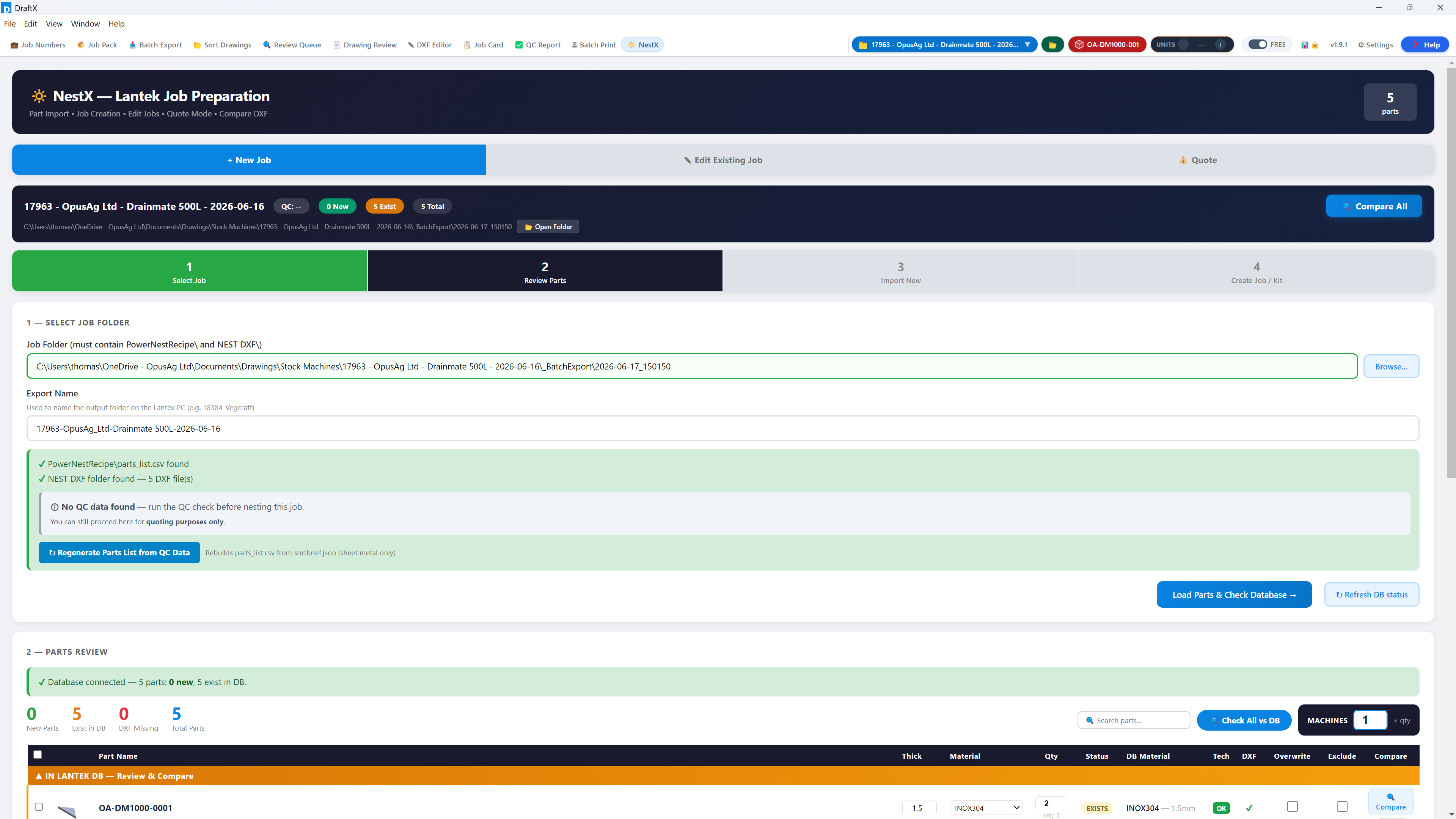
NestX pushes the job's laser parts into your Lantek database without manual re-entry. It's a numbered flow, top to bottom:
- Select Job Folder — point at the sorted job.
- Parts Review — check parts, quantities and materials; exclude anything you don't want nested.
- Import New Parts into Lantek — new geometry goes into the Lantek database.
- Create Job or Kit in Lantek — one click builds the Lantek job (or kit) ready for nesting.
4.8 Analytics — the numbers for whoever signs the invoices
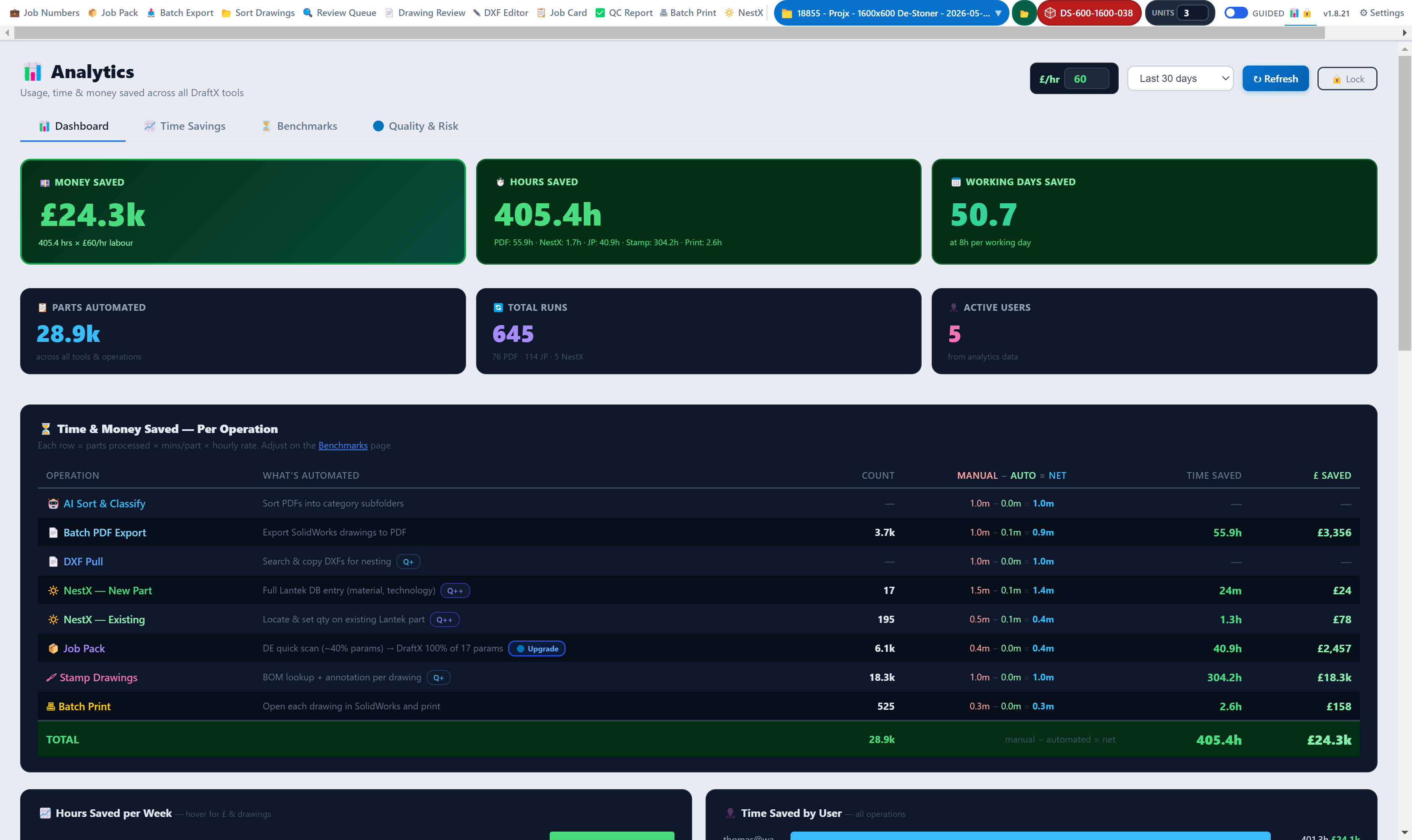
Dashboard, time savings and benchmarks built from your real jobs: hours saved per operation, money saved at your labour rate, parts processed, and how jobs compare. This is the tab to open when someone asks what DraftX is actually worth.
4.9 Settings — set once, forget
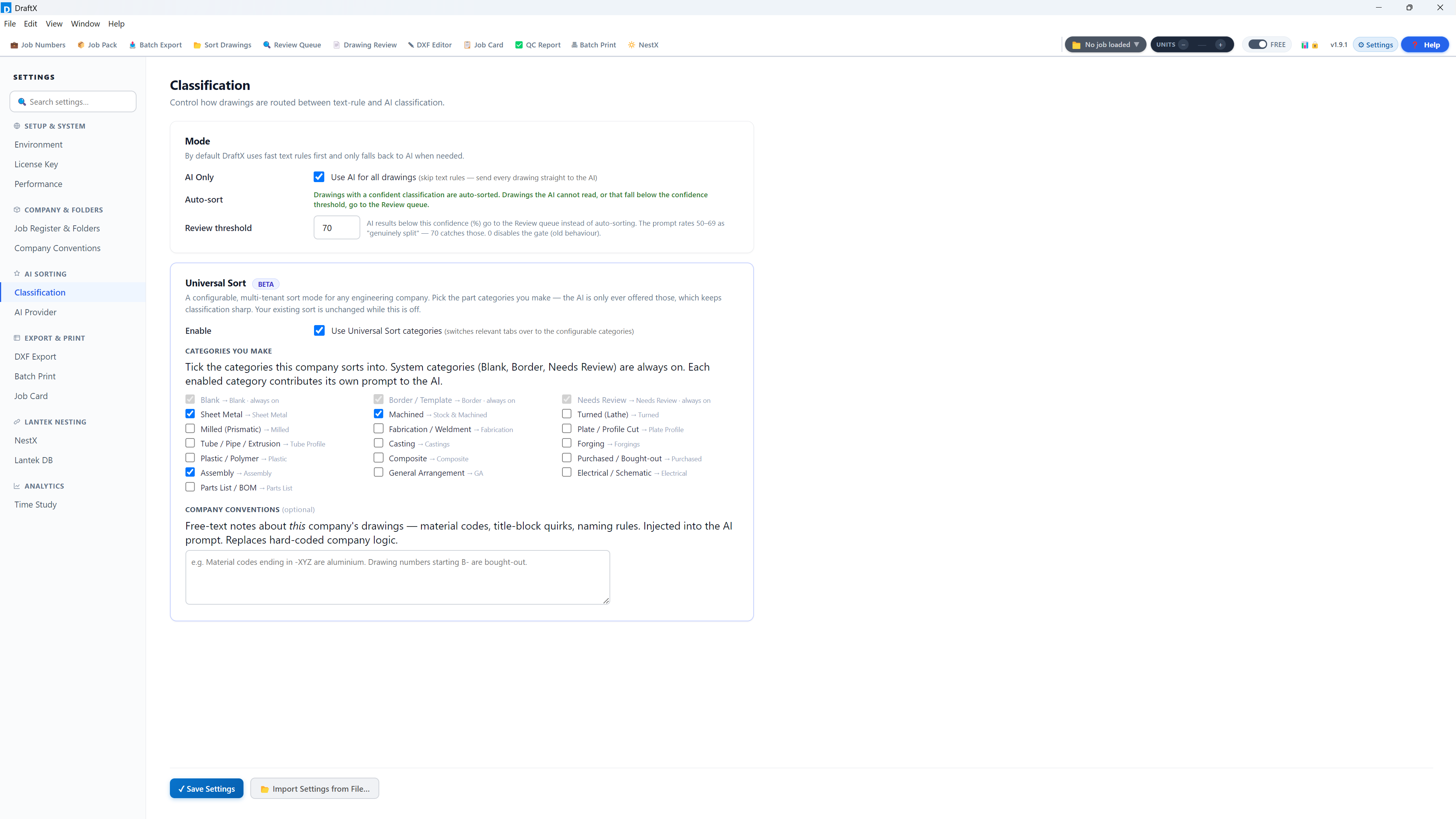
Everything configurable lives here: job drawings root folder, folder naming and templates, export method, branding for job cards, the Lantek database connection for NestX, AI provider credentials, and the minutes-saved figures behind Analytics. For a first install, set the Job Drawings Root and you're off — the rest has sensible defaults.
5 Optional: switch on AI sorting
AI sorting reads each drawing image and classifies it with near-human judgement. It's off until you add your own credentials in Settings:
| Anthropic (direct API) | AWS Bedrock | |
|---|---|---|
| You need | An Anthropic API key | An AWS account with Bedrock access keys |
| Data processed in | United States | UK/EU (London region, EU inference) |
| Best for | Fastest setup | Data-residency requirements |
Either way, drawing images go directly from your machine to your own provider account — never through OpusAg — and neither provider trains models on API inputs. Details in the privacy policy.
6 For IT
- Footprint: per-user Windows desktop app. No admin install, no server, no database, no inbound connections.
- Data: drawings, models and job data stay on your machines and network shares. OpusAg receives licence-admin data only (see privacy policy).
- Outbound HTTPS (443) to allow:
| Destination | Purpose |
|---|---|
draftx-license-server-production.up.railway.app | Licence validation (72-hour offline grace if unreachable) |
github.com / *.githubusercontent.com | Automatic updates and installer downloads |
api.anthropic.com (only if AI sorting via Anthropic) | AI drawing classification |
bedrock-runtime.eu-west-2.amazonaws.com (only if AI via Bedrock) | AI drawing classification, UK/EU residency |
7 Troubleshooting
| Symptom | Fix |
|---|---|
| "Licence can't be validated" | Check the licence server domain isn't blocked by firewall/proxy. DraftX keeps working offline for 72 hours. |
| Trial expired | Email sales@opusag.co.uk — we convert your key in place, no reinstall, nothing lost. All files you created remain yours either way. |
| Run Job Pack greyed out | Set the model first with Detect from assembly. |
| Batch export does nothing | Make sure SolidWorks is installed and licensed on this machine, and close any blocking SolidWorks dialog boxes. |
| A tab is locked | You're in Guided mode — click the locked tab and it tells you the step to complete first, or switch to Free mode in the header. |
| Anything else | sales@opusag.co.uk — include the job name and a screenshot if you can. |